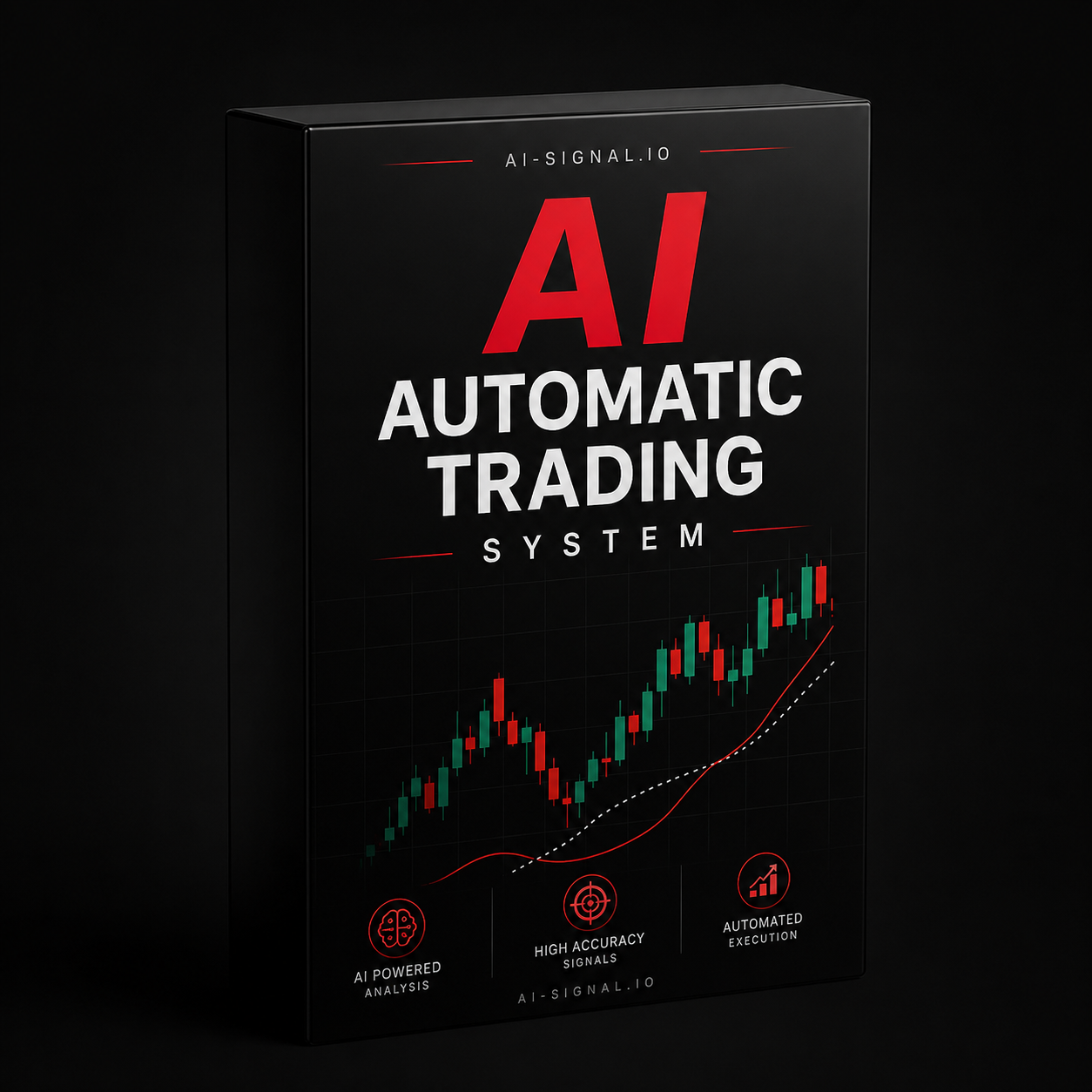
Ai-signal.io
AI Trading System
AI Trading System
Couldn't load pickup availability
What You’re Getting
This is not just another signal service. You’re getting access to a fully automated AI trading system that connects directly to your MetaTrader 5 account.
No more screen time, no more emotional decisions — just smart, AI-powered trading support running 24/7 when your platform is online.
Key Features
- Real-time trading signals powered by AI
- Supports popular instruments such as XAUUSD, BTCUSD, EURUSD, GBPJPY, USDJPY and GBPUSD
- Works on personal and prop firm trading accounts
- Customizable settings: choose your pairs and your own lot size
- Simple setup with dashboard access and license activation
- Designed for MetaTrader 5
Manual Trading vs AI Automatic Trading System
| Feature | Manual Trading | AI Automatic Trading System |
|---|---|---|
| Emotions Involved | Yes | No emotional decisions |
| Time Consuming | Yes | Designed to run automatically |
| Consistency | Depends on the trader | Rule-based execution |
| 24/7 Platform Availability | Requires your attention | Works best on a Windows VPS |
| Real-Time Signals | Can be delayed | Instant AI-based signal processing |
| Strategy Optimization | Manual | AI-powered approach |
How It Works
- Buy a subscription: 7-day trial, 1 month, 3 months, or 1 year.
- After purchase, your dashboard access and license key are sent to your email.
- Download the EA file from your customer dashboard.
- Install the EA on MetaTrader 5 and enter your license key.
- Keep MetaTrader 5 running on a Windows VPS for stable operation.
Lot Size Recommendations
- Personal accounts: around 0.03 lots per $1,000 as a conservative starting point.
- Prop firm accounts: around 0.02 lots per $10,000 to help keep drawdown under control.
- Always use risk settings that match your account size and risk tolerance.
- Aggressive lot sizes can increase risk significantly.
What You Should Know
- One license is activated on one MT5 account.
- You can choose specific pairs or use the available supported instruments.
- The system requires MetaTrader 5 to stay open and connected.
- For stable 24/7 operation, a Windows VPS is strongly recommended.
- Safe use means following the recommended setup and lot guidance.
Recommended Windows VPS
A Windows VPS is required for the best experience because it keeps MetaTrader 5 running 24/7 without relying on your personal computer. This helps maintain a stable connection for license checking, WebRequest, and EA operation.
- Keeps MetaTrader 5 online day and night
- Recommended for stable EA operation
- Useful for WebRequest and license connection
- Better than running the EA on a personal laptop
AI-Signal.io EA Installation Guide
Step 1: Check Your Email
- After payment, check your email inbox.
- You will receive your customer dashboard login details.
- Your license key will be included in the email.
- The installation video link will also be sent automatically.
Step 2: Download the EA
- Open the customer dashboard link from your email.
- Log in using your email and password.
- Download the EA file from your dashboard.
- The file will be an
.ex5Expert Advisor file.
Step 3: Copy the EA to MT5
- Open MetaTrader 5.
- Click File > Open Data Folder.
- Open this folder:
MQL5 > Experts - Paste the downloaded
.ex5file inside the Experts folder.
Step 4: Restart MetaTrader 5
- Close MetaTrader 5 and open it again.
- Or right-click inside the Navigator panel and click Refresh.
- Your EA should now appear under Expert Advisors.
Step 5: Enable WebRequest
- Go to Tools > Options > Expert Advisors.
- Enable Allow WebRequest for listed URL.
- Add this URL:
https://app.zed888.org - Click OK to save the settings.
Step 6: Attach the EA to a Chart
- Open a chart, for example
XAUUSD. - Drag the EA from Navigator onto the chart.
- Enter your license key exactly as received by email.
- Make sure AutoTrading is turned on.
Step 7: License Activation
- The license will activate automatically on your first MT5 account.
- After activation, the license is locked to that account.
- If you need to change your MT5 account, contact support before using it on another account.
Video Installation Guide
After purchase, the installation video will be sent automatically to your email together with your dashboard access. You can also watch the installation guide on YouTube using the button below.
Watch Installation Video on YouTube